Progress photos
A private photo log of how you look over time — separate from your weight and lifting numbers, and never leaves this device.
What this page does
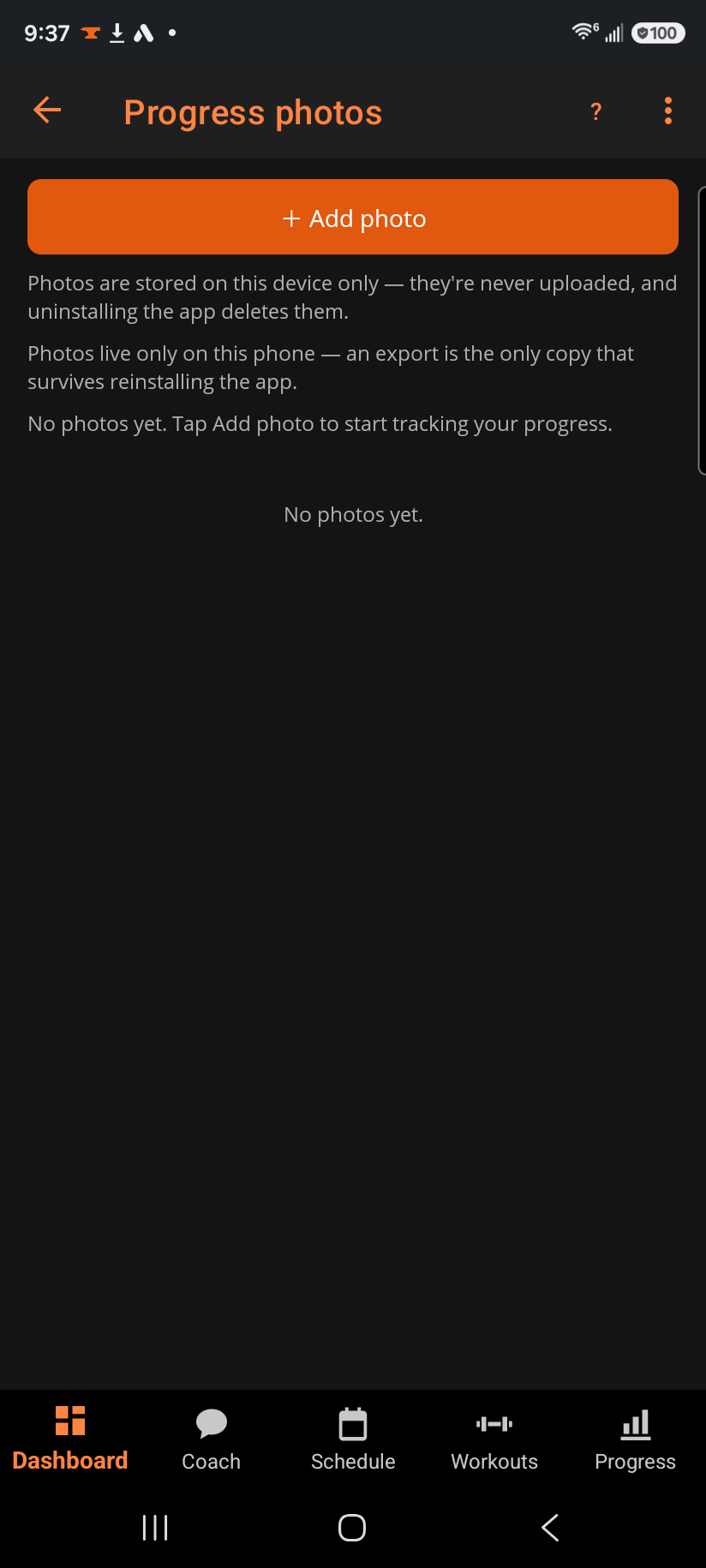
+ Add photo opens a menu to take a new photo or pick one from your gallery (import only on Windows — camera capture is Android). After you add one, you're asked which pose it is — Front, Side, Back, or skip — so later comparisons can match like with like. Every photo in the gallery grid shows its date, pose, and the bodyweight you logged closest to that date, if any.
Step by step
- Tap + Add photo, choose Take photo or Choose from gallery, then pick a pose (or Skip).
- Use the pose picker at the top to filter the grid down to Front, Side, or Back only.
- Tap Select to compare on two photos, then Compare to see them side by side. Picking a third replaces whichever of the two you selected first — you're always comparing the two most recent taps.
- Tap a photo to open it full-screen; see "Viewing a progress photo".
- Delete a single photo with the ✕ on its card, or clear the whole gallery from Delete all in the toolbar — both ask you to confirm first, and neither can be undone.
Good to know
These photos never leave your phone. They aren't backed up to the cloud, aren't included if you restore the app on a new device, and aren't touched by "Delete account" — there's nothing server-side to delete. Uninstalling the app deletes them for good, with no way to get them back, so treat this device as the only copy.
Related: Viewing a progress photo, Comparing progress photos, Bodyweight log.