Dashboard
Your home screen — what's happening today, what's ready to train, and what recently went up.
What this page does
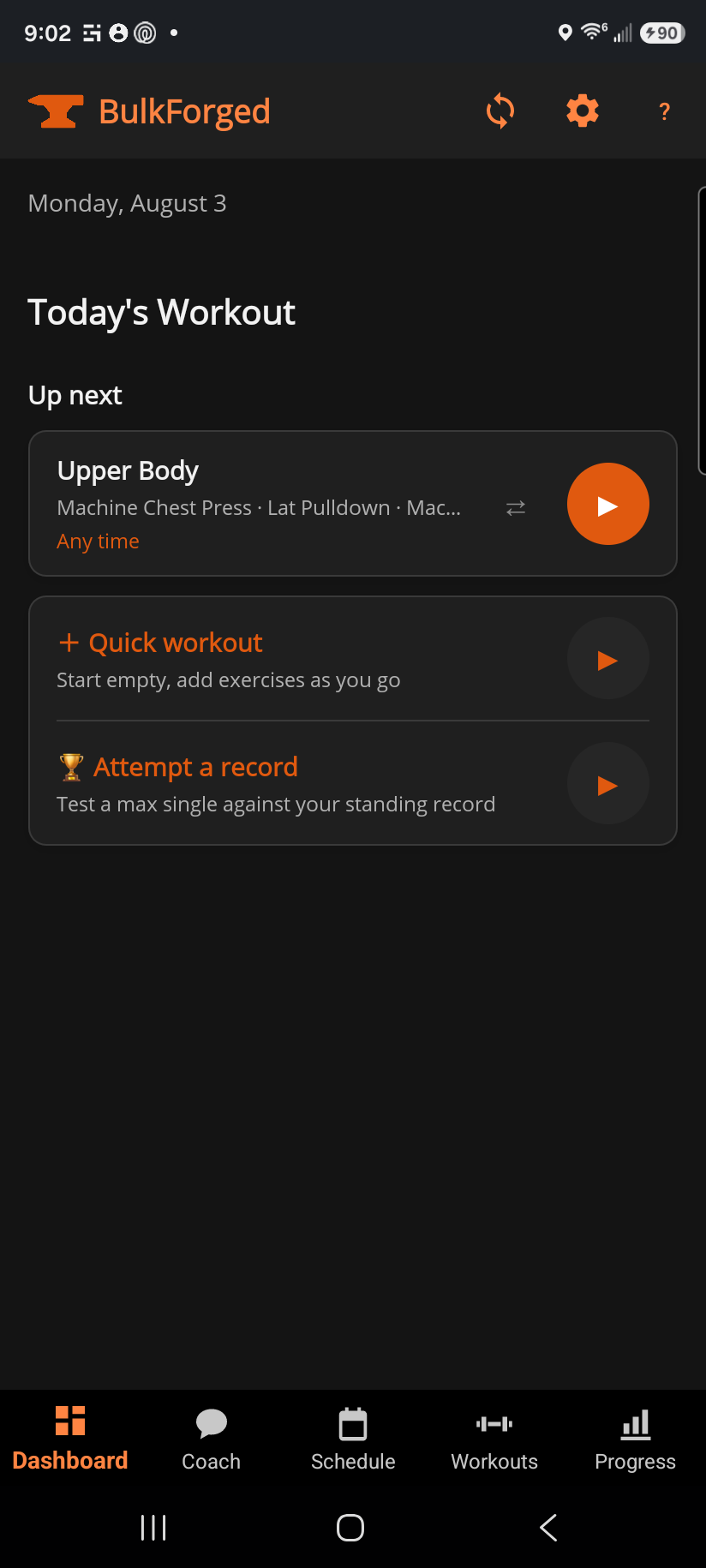
The top of the page carries a stack of banners that only show when they're relevant: a "resume workout" bar if you left one running on your watch, and an email-verification nudge. Below that, the left column is Today's Workout — either a card for what's scheduled, or a rest-day card offering something off-plan to do instead. The right column summarizes your muscle recovery, then lists recent personal records and recent target increases.
Step by step
- No routines yet? The whole page collapses to one button, Build my plan, which opens the plan chooser — build your own plan or pick a ready-made program. + Quick workout and Attempt a record appear once a routine exists; until then there's nothing to be off-plan from.
- On a rest day, start something anyway: Schedule a workout for today, + Quick workout (log without picking a routine first), or Attempt a record (test a single heavy lift). Go to Schedule jumps to the full calendar.
- On a training day, ▶ starts today's routine, or ⇄ swaps it for a different one just for today. A session you've already finished today shows with a ✓ and Completed beside its stats — tap it to open the full session detail.
- Tap the muscle recovery card's See details › to open the full recovery map and per-muscle readiness list on the Coach tab — the Dashboard card is a compact summary, not the full picture.
- Tap any row under New personal records or Your targets went up to open that exercise's history or the exact overload change behind the increase.
Good to know
The recovery card and the two activity strips only ever show real training history — a never-trained muscle or an account with no sessions yet shows a neutral empty state, not a false "ready" reading.
Related: Logging a workout, How progressive overload works, Overload history, Getting a plan.