Progressive overload tracker: every target change, and why
How to track progressive overload in BulkForged: the Progress tab shows your training over the last 12 weeks, and Overload History lists every target the app changed and why, searchable by exercise or routine. Each exercise has its own chart of your top set and estimated one-rep max, and the Records toggle lists your personal records.
Logging your workouts is free, and so are your 12-week totals, each exercise's chart and your records. Overload History is part of Coaching, which comes with a free trial.
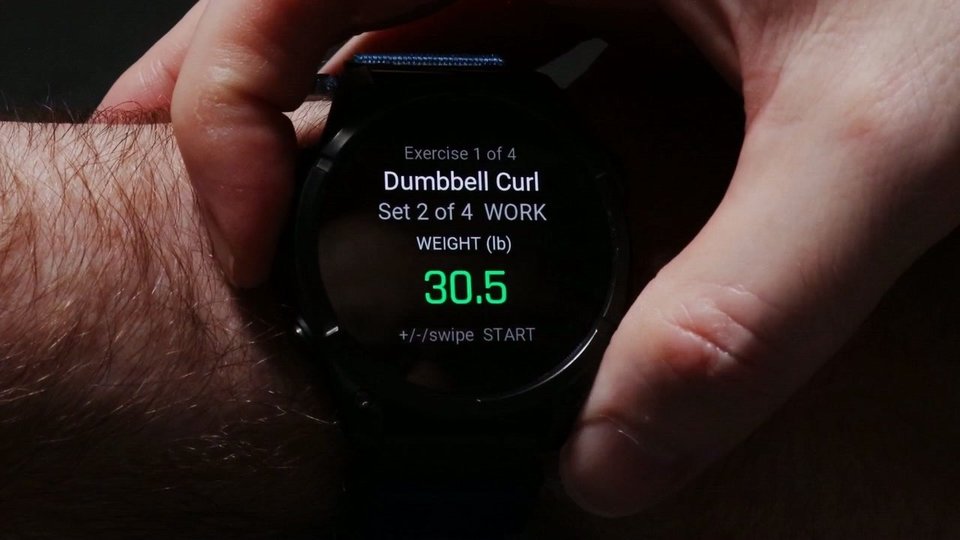
It runs on 90+ Garmin watches too: log your sets on your wrist, and the session lands in the app on your phone.
Read more
Chapters
- 0:00 Your 12 weeks
- 0:20 Overload History
- 0:35 An exercise's chart
- 0:49 Your records
Transcript
In this episode, we'll look back at how your training's going, from the big picture down to each lift.
Alright, let's get started.
On the Progress tab, you'll find "Your training over the last 12 weeks."
It shows your workouts, last week's volume, sets this week, and your current bests.
Next, I'll tap "View all" next to "Progressive overload" to open "Overload History."
This lists every target the app changed, and why.
I can search it by exercise or routine.
Each exercise has its own chart too, showing your top set over time.
The second line, marked "Est. 1RM", is your estimated one-rep max.
Finally, the "Records" toggle at the top lists your personal records.
So that's how you see the progress you're making.
Next up, your strength score.
The link's in the description.
iPhone: waitlist at bulkforged.com
More videos
 1:25Workout log app: log a set, see what it takes to add weight
 0:50Gym rest timer app that starts itself when you log a set
 0:56Garmin strength training: log each set in three presses
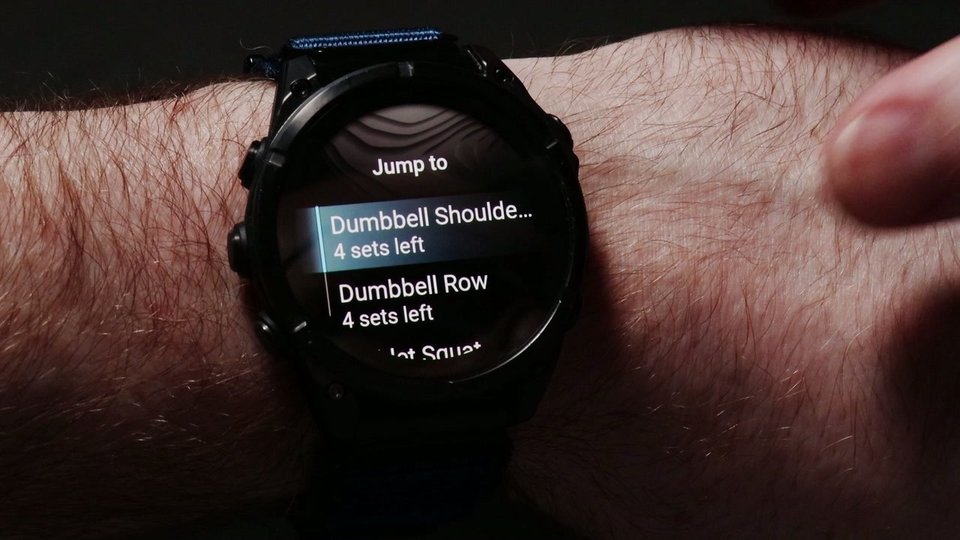 0:48Machine taken? Skip the exercise and come back to it
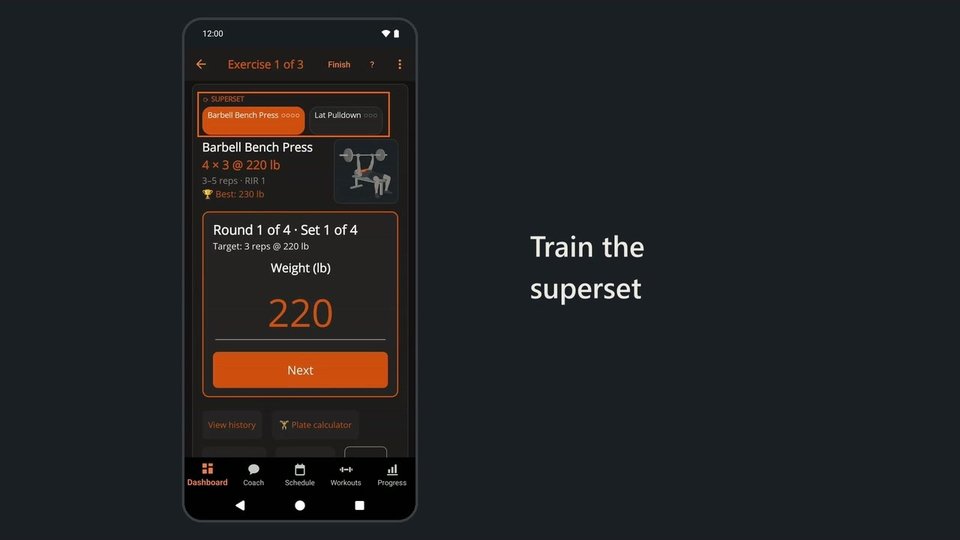 0:49Superset workout tracker: rest only after each round
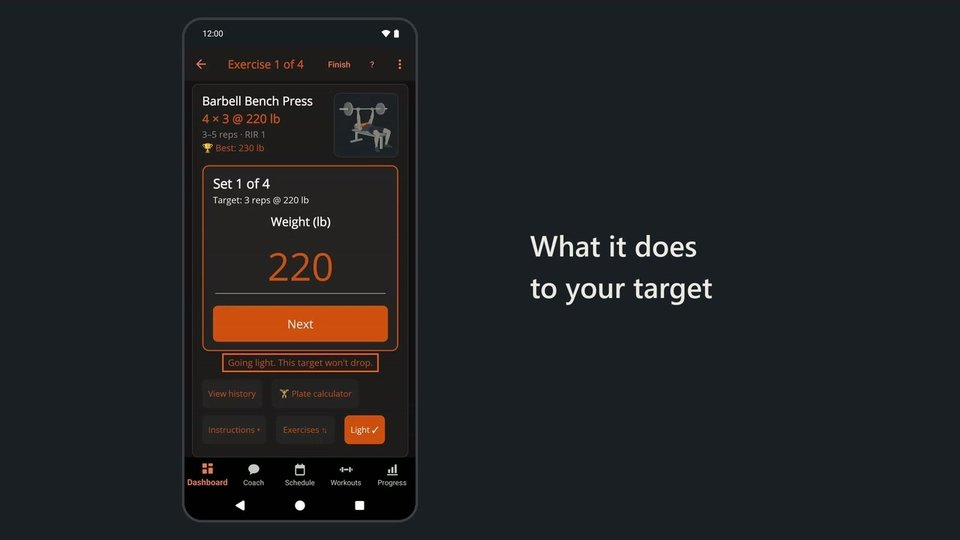 0:50Light day for one sore lift, without losing progress
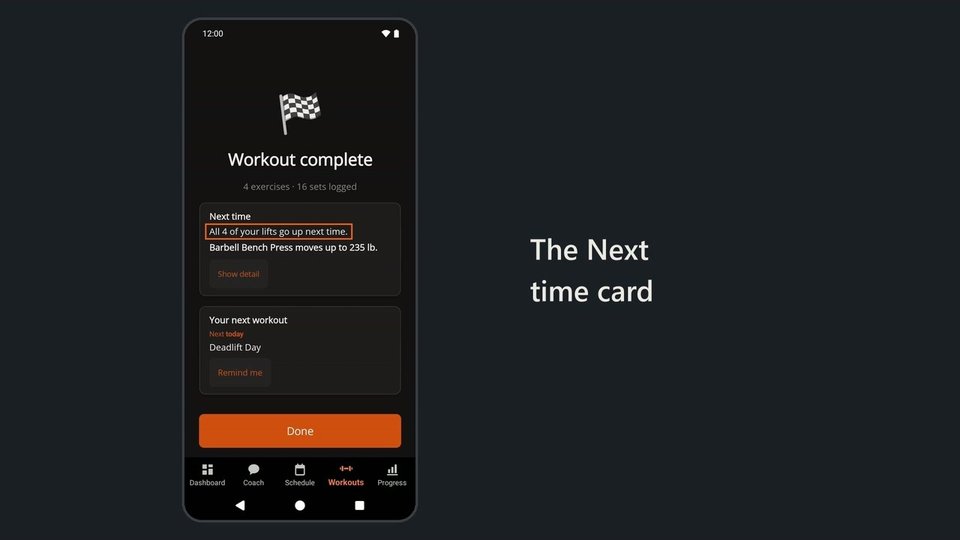 1:05Progressive overload app: finish a workout, see what goes up
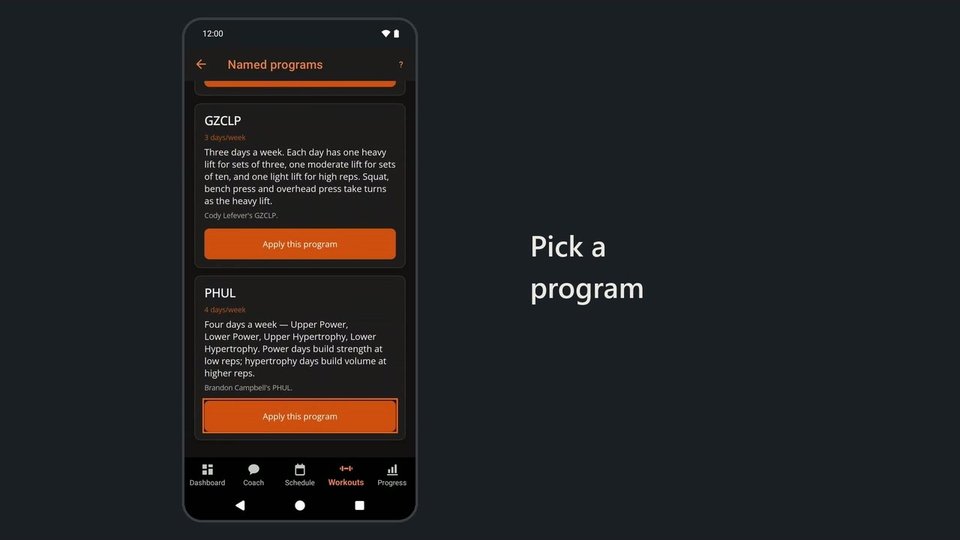 1:14Workout program app: PHUL, Greyskull LP, 5x5 or build your own
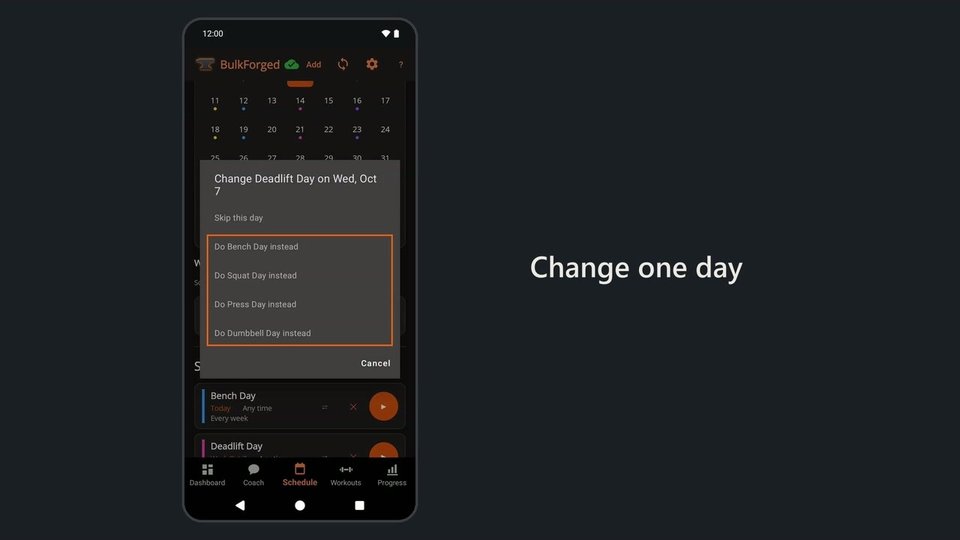 0:38Workout schedule app: skip or swap one day, keep the rest
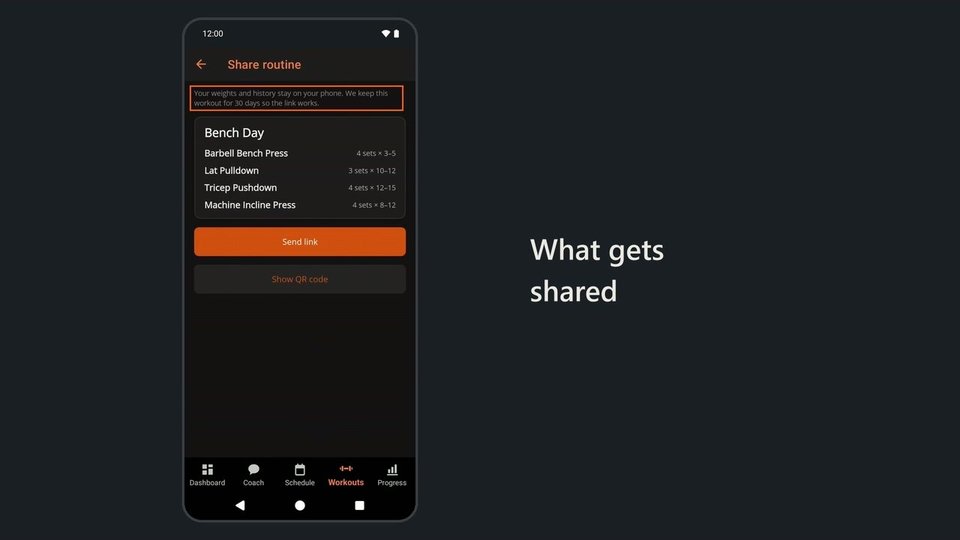 0:44Share workout app: send a routine, keep your weights private
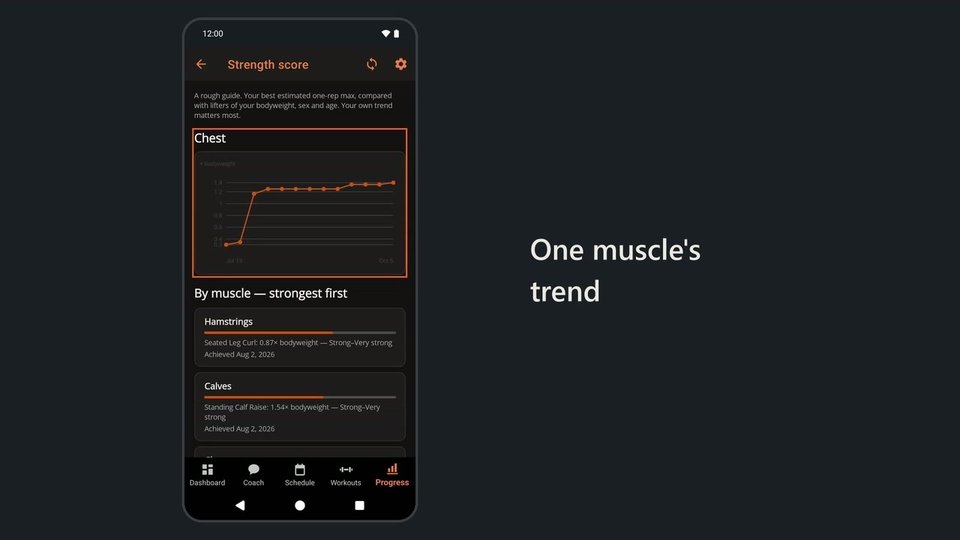 0:51Strength score app: how strong you are, muscle by muscle
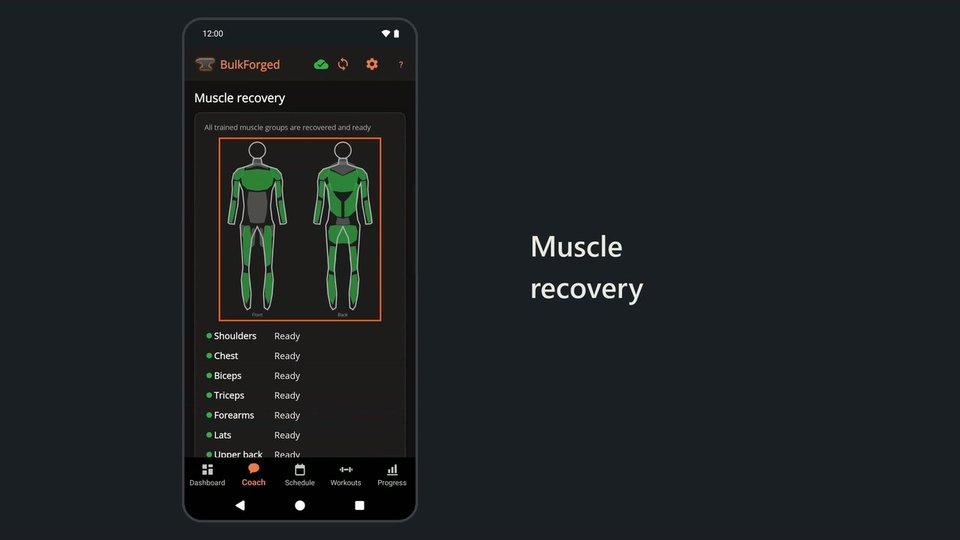 1:16Muscle recovery app, with coach advice and daily macro ranges
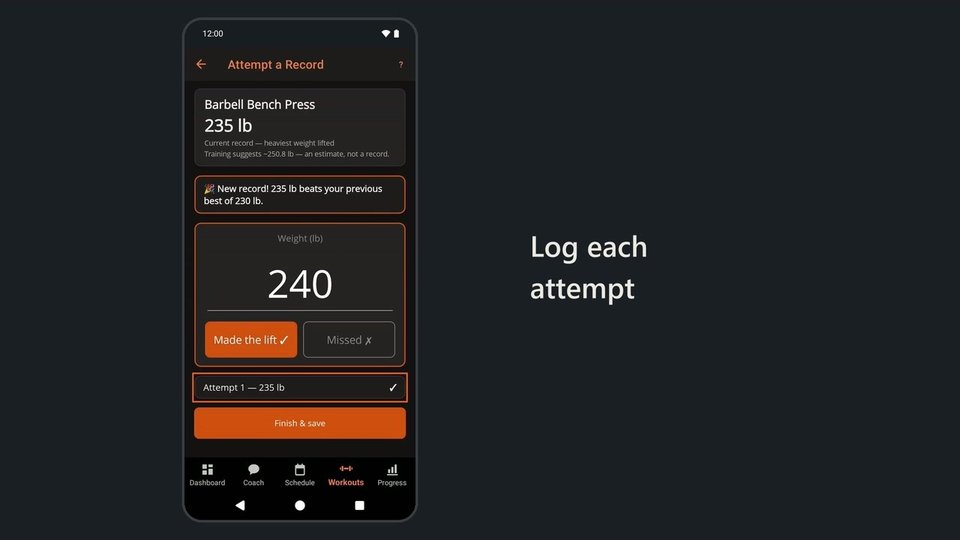 0:50One rep max test: log each heavy single, made or missed