One gym workout on a Garmin watch, press by press
One BulkForged workout on a Garmin watch is the same handful of screens, set after set, from picking the routine to the targets it sets for next time.
1. Pick the routine
Open BulkForged on the watch and the Start Workout menu lists your routines, each with its exercise count. Pick one and it opens the first exercise. With the watch paired to your BulkForged account, your phone shows the same workout within a few seconds of it starting.
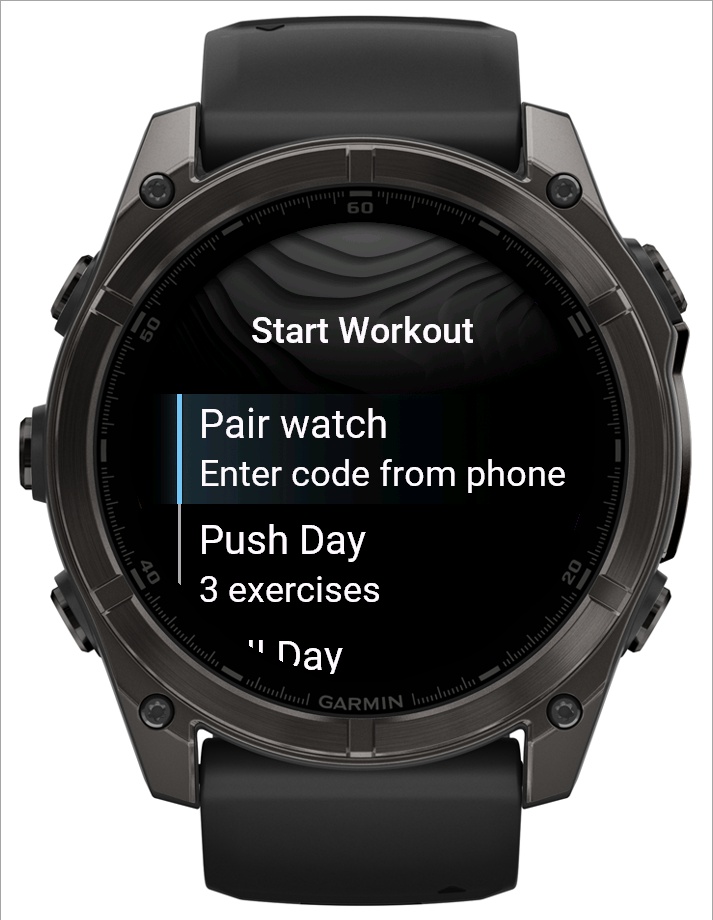
See the whole session, start to finish: watch the demo. It runs the routine pick, the overview, the weight and reps screens, and the rest timer in one take.
2. Meanwhile, on your phone
The Active Workout screen on your phone mirrors the same live session, whichever device is actually driving it. Log a set on the watch and the phone shows it within a few seconds; the other way round works too.
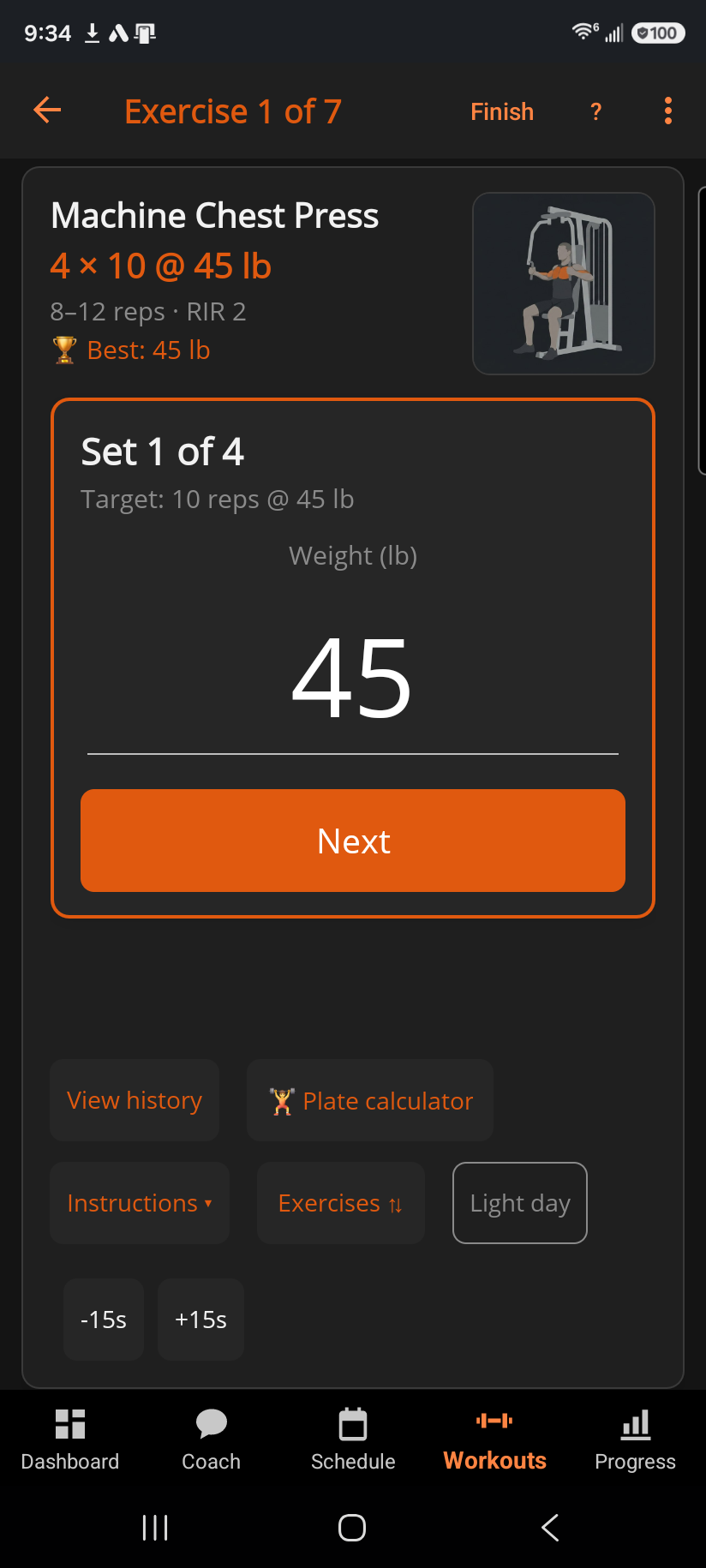
See the two devices stay in sync: watch the demo.
3. Before each set: the overview screen
This is the screen you land on before every set and return to after every rest: the exercise, the set number, the target weight and target reps, plus a coaching cue when your routine has one and a reps-in-reserve label ("TARGET · 2 LEFT", two reps left in the tank) when that set asks for it.
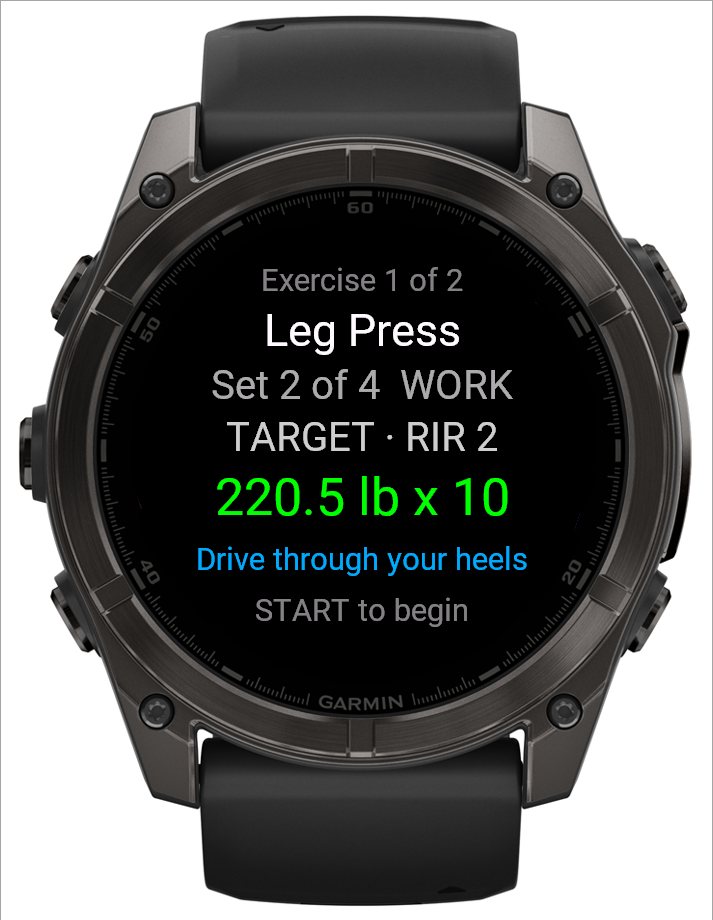
START begins the set — press 1.
4. Confirm the weight
The number starts on your target. UP/DOWN or a swipe adjusts it, and repeated presses close together ramp the step — 0.5 → 1 → 2.5 → 5 — so a big change is a few presses, not fifty.
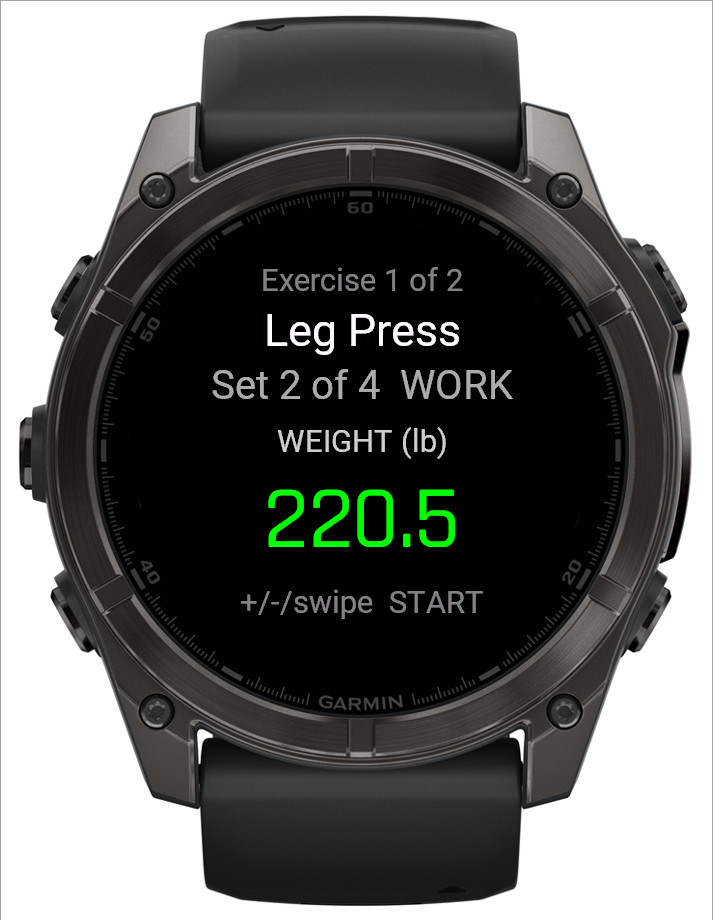
START moves on to reps — press 2.
5. Confirm the reps
The number starts on the set's target rep count, so a set that went to plan just needs a tap of START. UP/DOWN moves it by exactly one, no ramp.
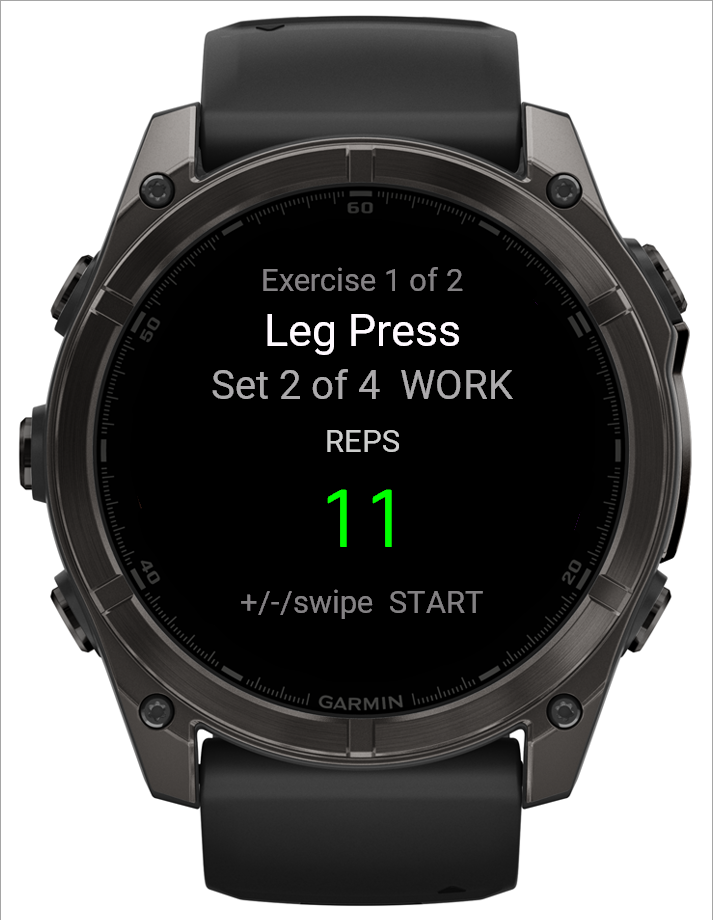
START logs the set — press 3, and for most sets that's the whole thing: three presses from the overview to logged. Unless this set asks for reps-in-reserve, in which case START goes to that screen first.
6. The optional reps-in-reserve step
Only appears on sets your routine asks for it on. The value starts on "--" (not recorded) and never blocks logging or changes a target — it's a note for your own reference.
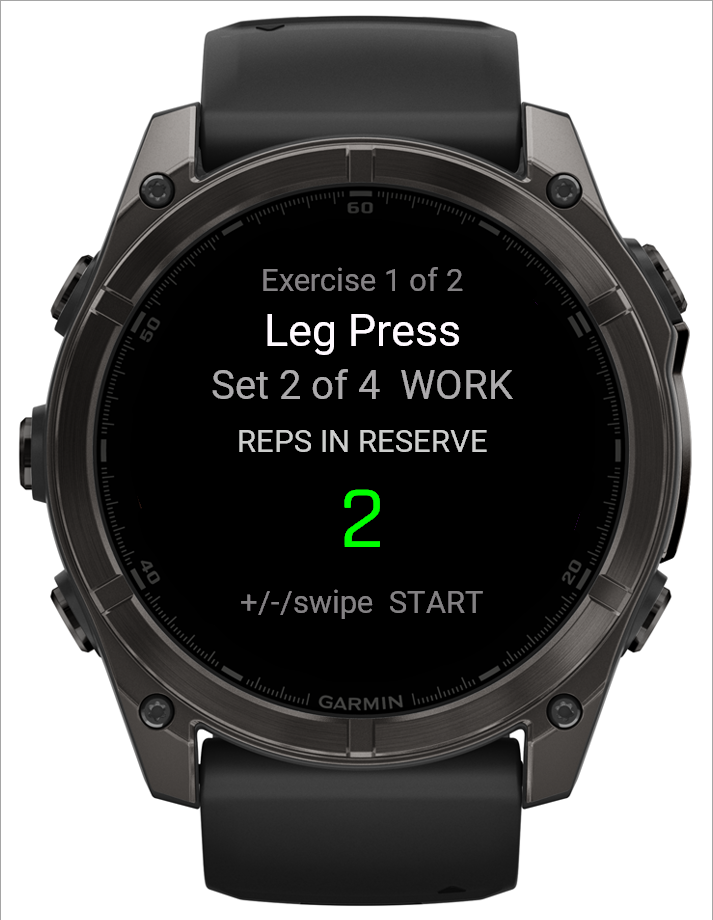
START logs the set regardless of what's showing. On a set that prompts for this, that makes four presses in all, not three.
7. Resting between sets
A countdown to the next set, with a preview of its weight and reps underneath. UP/DOWN adjusts it by 15 seconds; it buzzes once at 15 seconds left and again at zero, then moves on by itself. START or BACK skip it immediately.
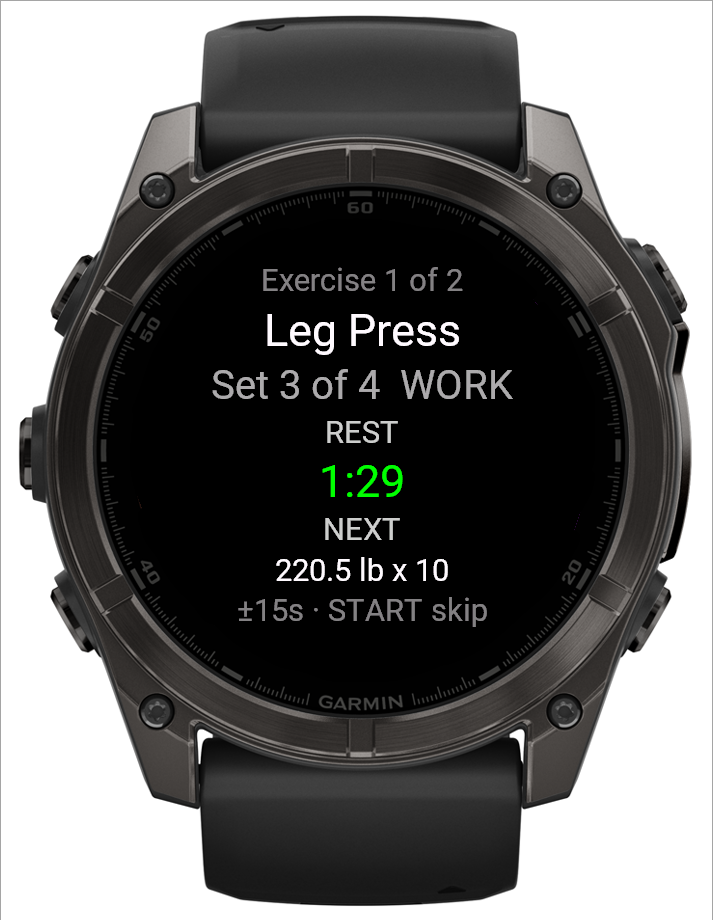
See the timer run and skip: watch the demo.
8. When a machine is busy
Press BACK on the overview to open the workout menu, then choose Jump to exercise — never Skip exercise, a different row that drops the rest of that exercise's sets instead of just setting them aside. Jump to exercise lists everything with sets still left, so you can work something else and come back to the busy machine later.
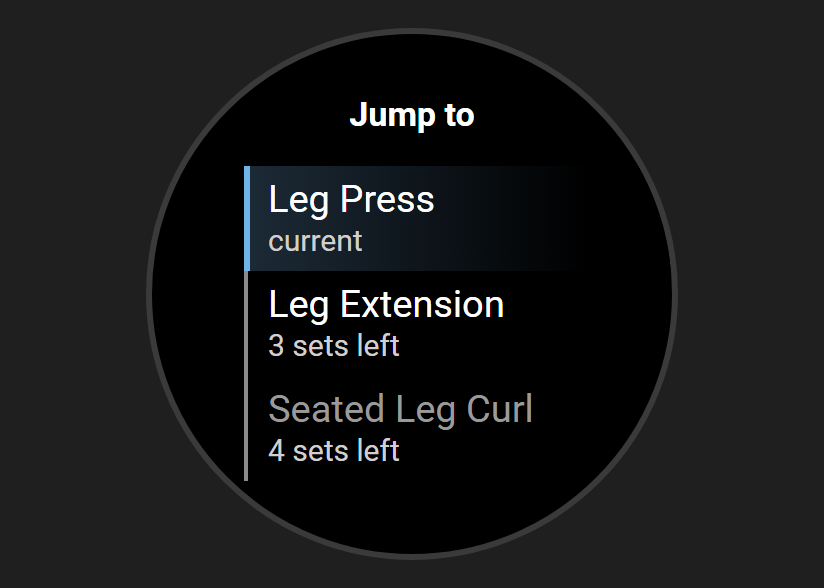
See it in action: watch the demo.
9. Finishing the workout
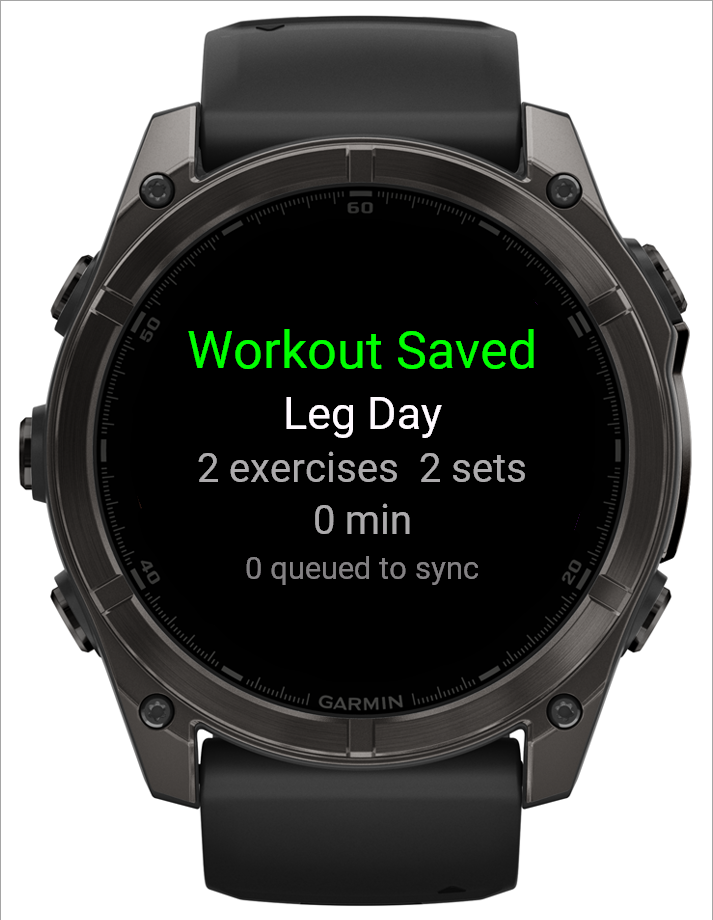
Press BACK on the overview to open the workout menu and choose Finish & Save — or just keep going: the summary appears automatically once the last set is logged.
10. What your phone shows afterwards
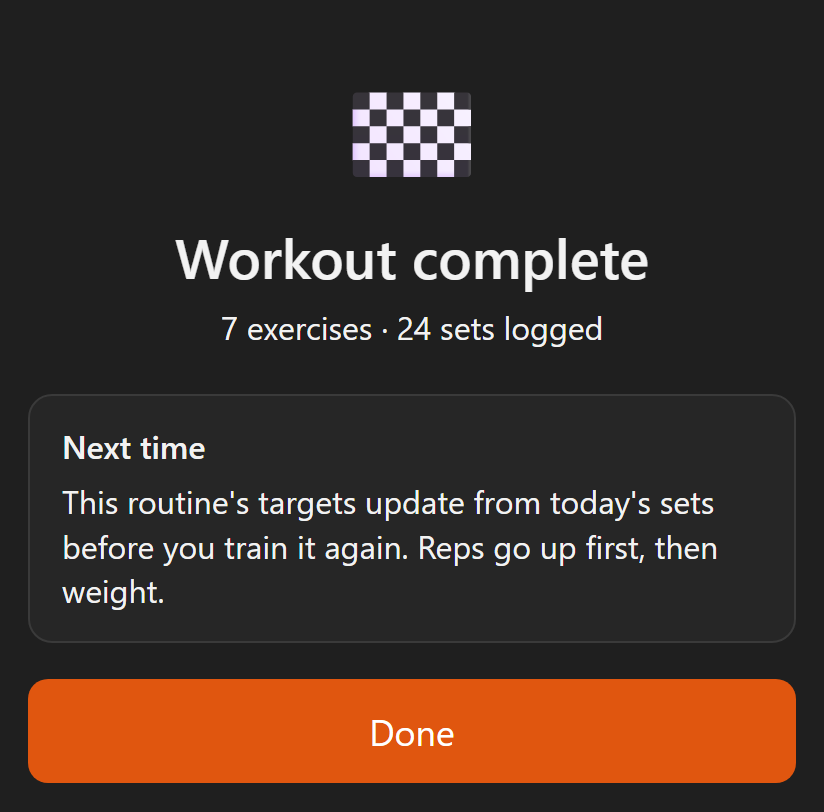
The workout summary on your phone recaps what you did — exercises and sets logged — plus a Next time card naming what changes before you train this routine again, and a Your next workout card for whatever's scheduled next.
11. The targets for next time
BulkForged uses double progression: add reps each session, and once every working set reaches the top of your rep range, weight goes up and reps reset to the bottom. A short set within your range isn't a miss — the target just holds so you can try again, and it can ease back a little rather than never moving at all. See When should you add weight? for the full explanation with a worked example.
See the targets actually move: watch the demo.
Prefer Garmin's built-in route?
This walk covers the Connect IQ watch app. If you'd rather use Garmin's built-in Strength activity, or want both routes compared side by side, see How to log a gym workout on a Garmin watch.
Related: Starting a workout from your watch, The set overview screen on your watch, The weight screen on your watch, The reps screen on your watch, The reps-in-reserve screen on your watch, The rest timer on your watch, The workout menu on your watch, The workout summary on your watch, Workout summary, Logging a workout, Using your Garmin watch.
Get BulkForged on Google PlayMore guides
- Best strength training apps for Garmin watches
- Does Hevy work with Garmin?
- Apps that raise your weights automatically
- How to log a gym workout on a Garmin watch
- Why your Garmin miscounts reps
- When should you add weight?
- How many sets per muscle per week?
- How to keep muscle while losing weight
- Which Garmin watches run BulkForged?
- Switching to BulkForged from Hevy or Strong
- Questions to ask before you install
- BulkForged and Garmin Connect: what's saved where
- How the watch and phone stay in sync during a workout
- Phone in the locker, workout on your Garmin
- Machine taken? Skip to another exercise
- How to track progressive overload on a Garmin
- Why Garmin Strength Coach skips some weights
- Fix Garmin Strength weights, names and sets
- Which Garmin watch is best for lifting?
- BulkForged on the fēnix 9
- BulkForged on the fēnix 8
- BulkForged on the epix Pro
- BulkForged on the Forerunner 970
- BulkForged on the Forerunner 965
- BulkForged on the Instinct 3 AMOLED